Getting started
Find a coin, connect a wallet and place your first bid. You choose the price and how much to commit.
#Before your first bid
You need a wallet on SOL and enough SOL for your bid, network fees and account rent. Connecting a wallet only reveals its public address. Placing or cancelling a bid asks you to approve a transaction.
You do not need to hold the project token to place a bid or earn points. Verify the coin's contract address; names and symbols can be duplicated.
#Find and inspect a coin
Use the search to find a name or paste a contract address. The catalogue offers sorting and filters for market cap, volume, liquidity, holders, age and existing bids. Metrics can be missing or delayed. A dash can mean unavailable data; zero SOL amounts also use a dash.
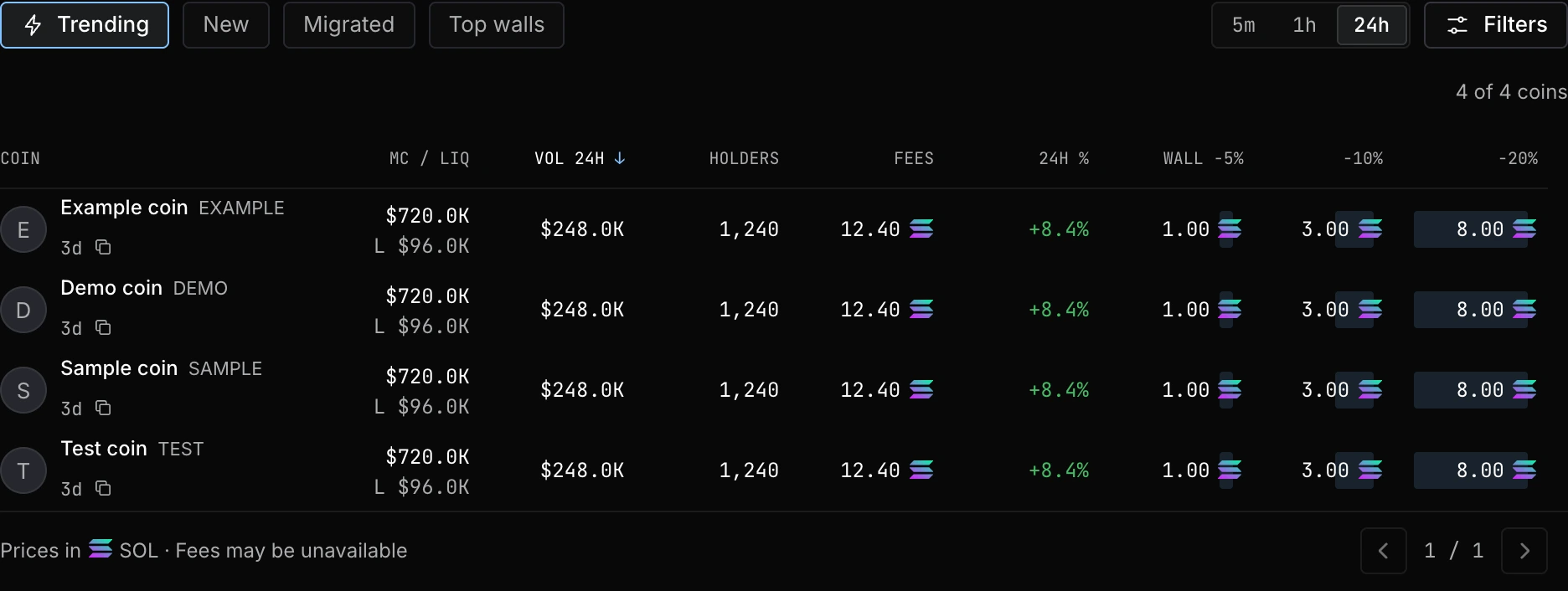
The Fees column describes cumulative trading fees reported by the data source. It is not your fee for placing a bid and is not necessarily the creator's share.
#Place your first bid
- Connect your walletUse Connect wallet. Check that the address shown is the account you intend to trade with.
- Set a priceChoose a percentage below the current market or an exact price. The resulting bid price is fixed and does not track the market.
- Choose the SOL amountReview how many tokens the bid can buy and the current points estimate. Leave SOL in your wallet for network fees.
- Review and signApprove the transaction in your wallet. Once confirmed, the bid appears in the wall and in Portfolio.
#Follow the bid
Portfolio shows open bids, fills, points and claim history. A new bid earns nothing during its warm-up. Check Points for the current rules and your estimated rate.